 Invoqly
Desktop apps · 3 MIN READ
Install Invoqly on your computer
Choose Windows, Mac or Linux and sign in to your existing workspace.
Choose the right download
Use the Invoqly download page to choose your operating system and processor. You do not need a new Invoqly account.
- Windows: run Invoqly-Setup.exe and follow the installer. Desktop and Start menu shortcuts are available.
- Mac: select Apple Silicon for an M-series Mac, or Intel for an Intel Mac. Open the DMG and drag Invoqly into Applications. Current Mac builds are unsigned and not notarized; macOS may block them.
- Linux: choose a DEB package for Ubuntu/Debian or an AppImage. Use x64 for Intel/AMD, or ARM64 for an ARM computer.
Sign in to the same account
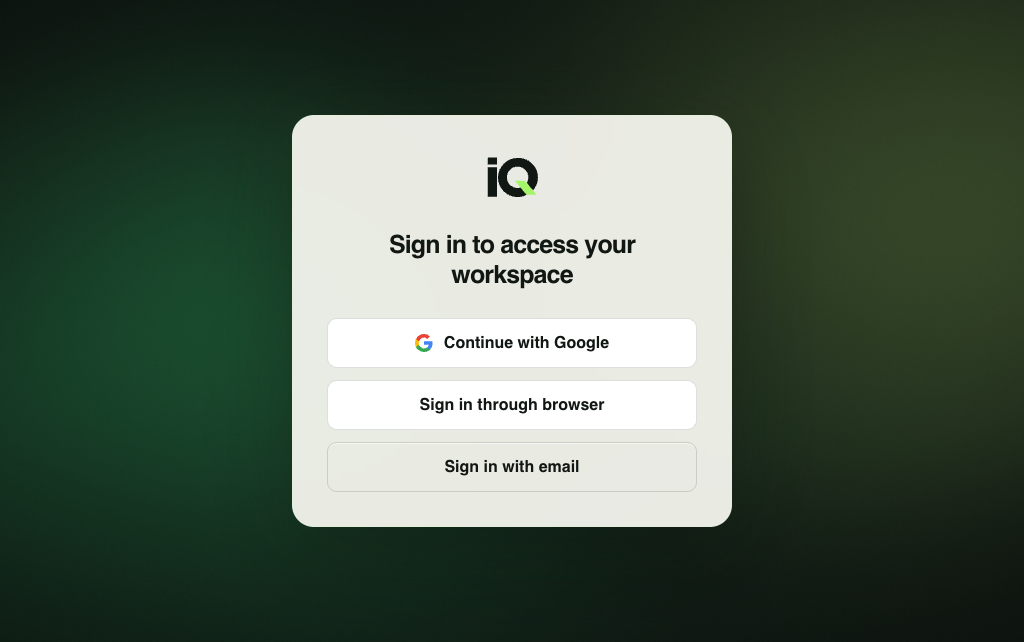
Continue with Google opens your system browser using the existing Invoqly Google sign-in. Sign in through browser lets you finish signing in on the website. Sign in with email sends a code to enter in the app. Existing authenticator checks still apply when required.
If the browser does not open, copy the generated sign-in link shown in the app and paste it into a browser. If it expires, start sign-in again.
On Linux, the DEB installer provides browser-return link integration. Standalone AppImage users need desktop integration for Google/browser return links, or can use email-code sign-in directly. A secure system keyring is needed to remember a Linux session.
Use invoices, PDFs and billing links
Your existing invoices and clients load from the same account. Invoice printing and downloads use your computer’s dialogs. External links, including payment-provider billing pages, open in your system browser.
Refresh or check for updates
Once signed in, use Refresh to reload the workspace and Updates to check for a desktop release. Where supported and permitted by your computer’s notification settings, a new update can produce a desktop notification while the app is running. You choose when to download and restart.
Linux update feeds are available. Mac automatic updates are pending a signed release; use the download page for current Mac packages.
When your connection drops
Invoqly needs an internet connection to load and save your cloud data. The desktop app offers a reconnect screen when it cannot load the workspace. Reconnect, then try again. Offline edits are not synchronized later; avoid closing unsaved work.